

How to Track Spending in Multiple Currencies Without Doing Math in Your Head
Paid in one currency, spending in another? Four rules for multi-currency budgeting — accounts, base currency, exchange rates — and how to set them up on iPhone.
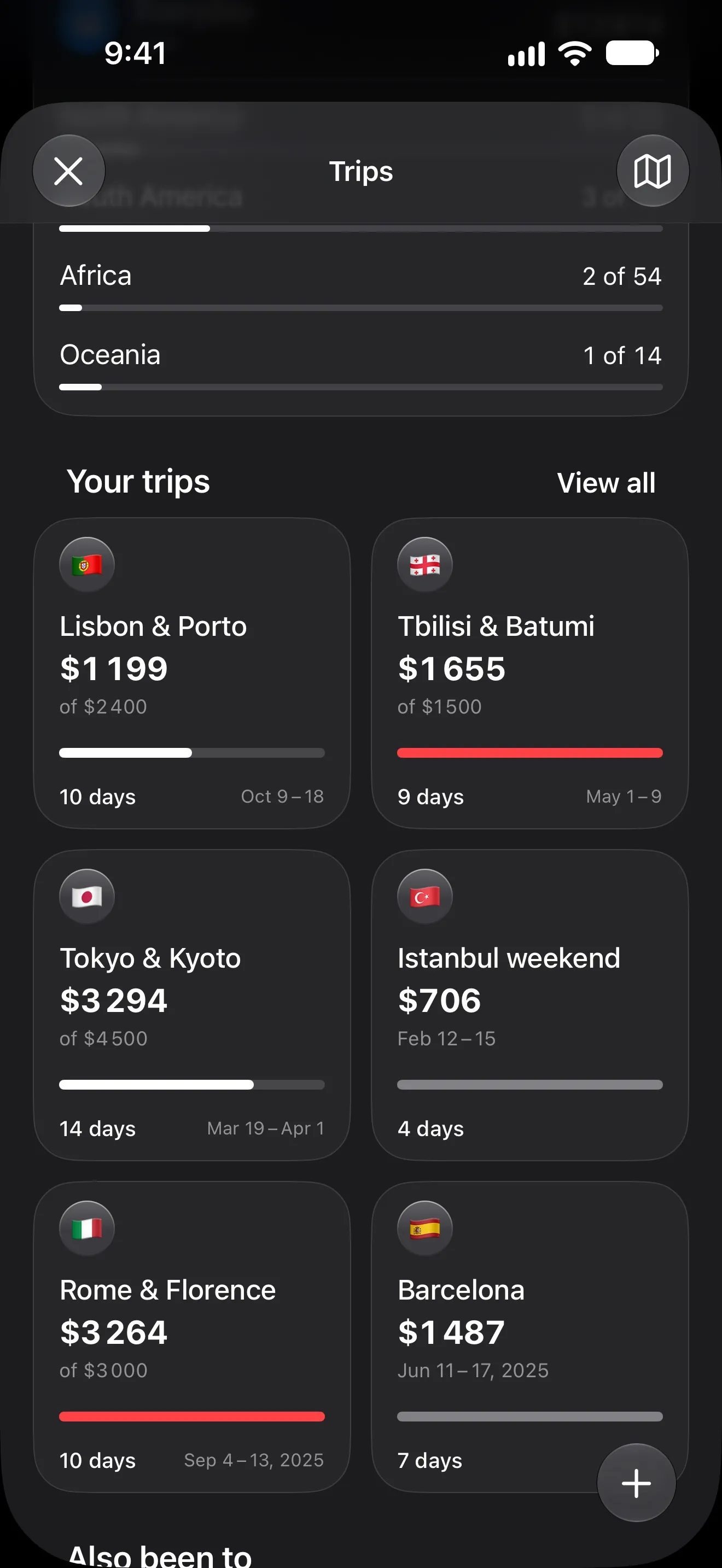
If all your money lives in one currency, budgeting is arithmetic. Add a second currency and it turns into guesswork: a salary in dollars, rent in euros, a savings account in pounds, a weekend in Istanbul paid in lira. Every total depends on a rate, and the rate keeps moving.
This is the system that keeps it sane, whether you’re an expat, a frequent traveller or just someone with a foreign-currency card.
Rule 1: One account per real currency
Mirror reality. If you have a euro card and a dollar card, keep a euro account and a dollar account, each in its own currency.
The temptation is to convert everything into one account. Don’t: the balance will never match your bank, and every small rate difference piles up into an unexplainable gap.
When you move money between them, record it as a transfer, not as an expense on one side and income on the other. Otherwise your spending looks higher than it was.
Rule 2: Log what you paid, in the currency you paid
Enter the amount on the receipt — 9.50 euros, 320 lira — not your mental conversion of it. The app converts; you just record.
In Lode, an expense in a different currency from its account is converted at the live rate, and both are kept. Open the transaction and you see the amount you paid and the exchange rate that was used. If you know the exact rate your bank applied, you can enter it instead.
The same goes for automatic logging: the Apple Pay automation picks up the payment currency when it can and falls back to the account’s.
Rule 3: Pick one base currency to think in
You need one currency for the big picture: total balance, budgets, statistics. Choose the one you think in — usually the one you’re paid in — and stick with it.
In Lode this is Settings → Currency. Totals and budgets are calculated in it, so a month with spending in three currencies still adds up to one number you can compare with last month.
Trips work the same way: each trip is totalled in your base currency, whatever the local money was.
Rule 4: Know which rate you’re looking at
There are two rates in every foreign payment, and they’re rarely equal:
- The market rate — what the app uses, and what you see in the news.
- Your bank’s rate — the market rate plus the bank’s margin and any foreign transaction fee.
That’s why a card statement can be a few percent off the converted amount. For everyday budgeting the difference doesn’t matter. When it does — a big purchase, a reimbursable expense — use the custom rate, or log the amount as it appears on your statement in the account’s own currency.
Pay in local currency, not “your” currency
When a card terminal or ATM abroad offers to charge you in your home currency, decline. That’s dynamic currency conversion: the merchant’s provider picks the rate, and it’s usually worse than your card’s. Paying in the local currency also keeps your records simple — one amount, one currency, one rate.
Set it up in Lode in five minutes
- Set your base currency in Settings → Currency.
- Create an account for each real account you have, in its own currency. Lode supports more than 150 currencies.
- Pin the currencies you use in Exchange Rates. Each one opens a rate history from one week to one year, and Quick Convert handles one-off sums.
- When you travel, create a trip: everything you spend on those dates is collected and totalled in your base currency.
What it costs
Conversions happen only when a transaction’s currency differs from its account’s. The free plan includes 5 a month; Premium is unlimited. If you spend in one foreign currency a lot, an account in that currency avoids conversions altogether: the euro card’s purchases go to the euro account, already in euros.
More from the Journal
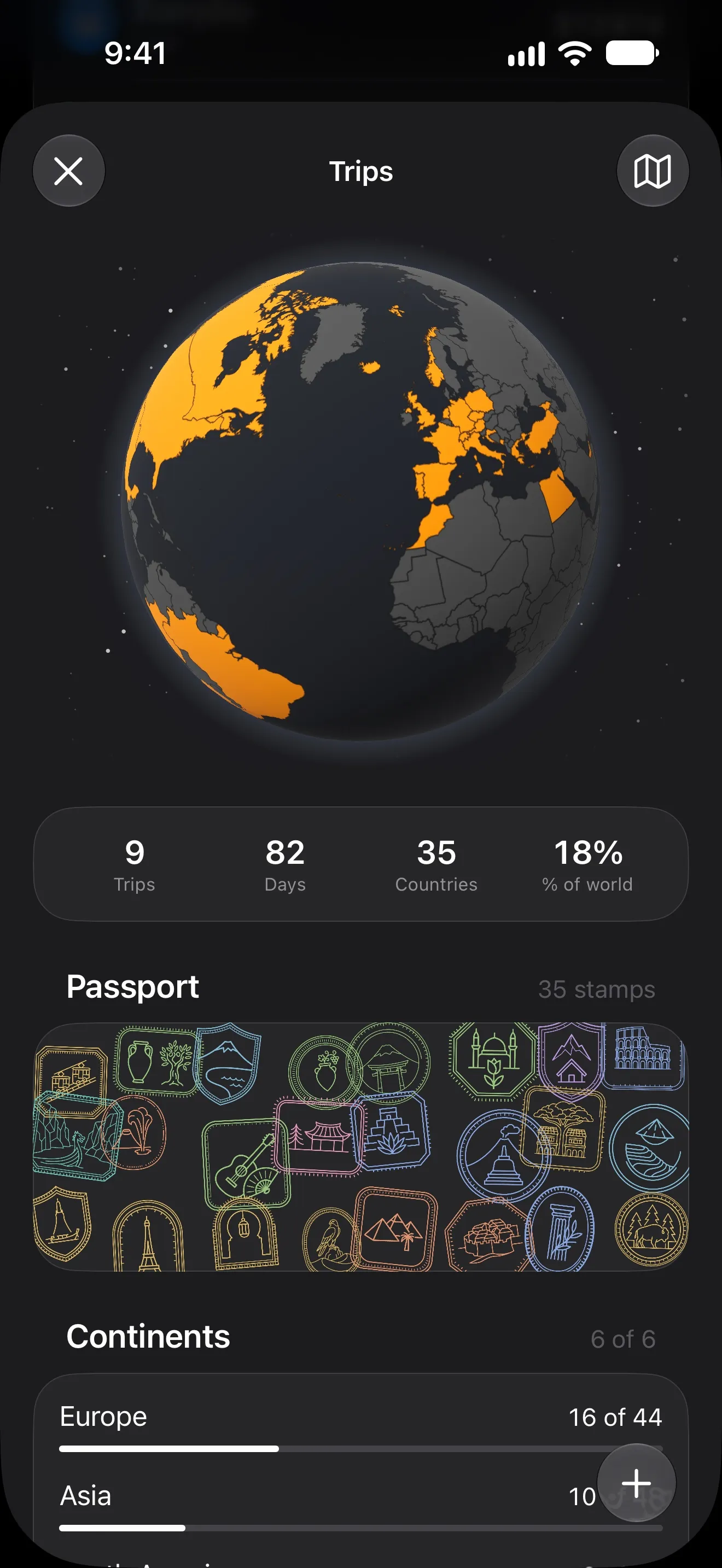
How to Budget for a Trip Abroad (and Know What Each Day Cost)
Set one trip budget, log spending in the currency you pay in, and watch the cost per day as you go. A simple travel money method, and an iPhone app to run it.
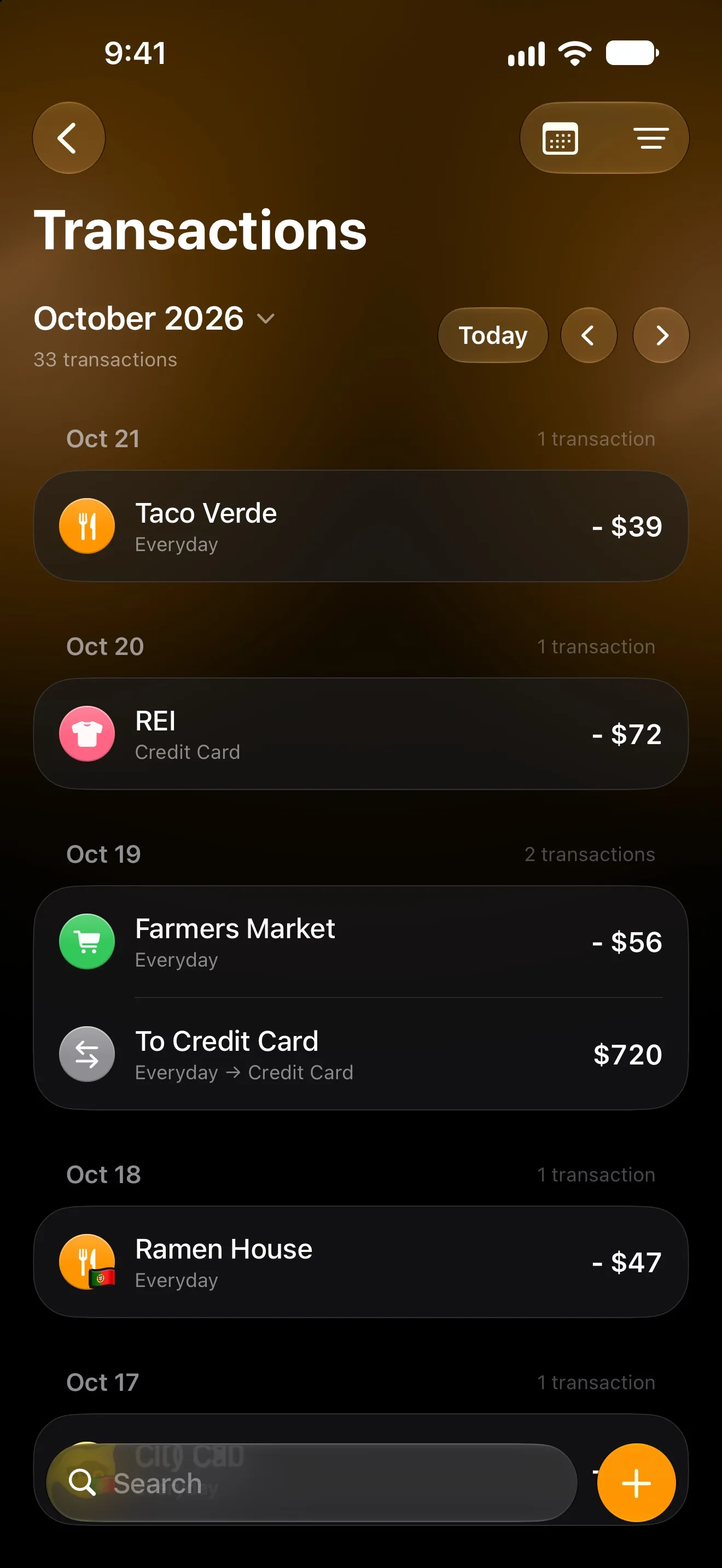
How to Track Expenses Automatically on iPhone
Four ways to log spending on iPhone without typing every purchase: bank sync, Apple Pay automations and the iOS 27 notification trigger — and which to pick.