

How to Track Expenses Automatically on iPhone
Four ways to log spending on iPhone without typing every purchase: bank sync, Apple Pay automations and the iOS 27 notification trigger — and which to pick.
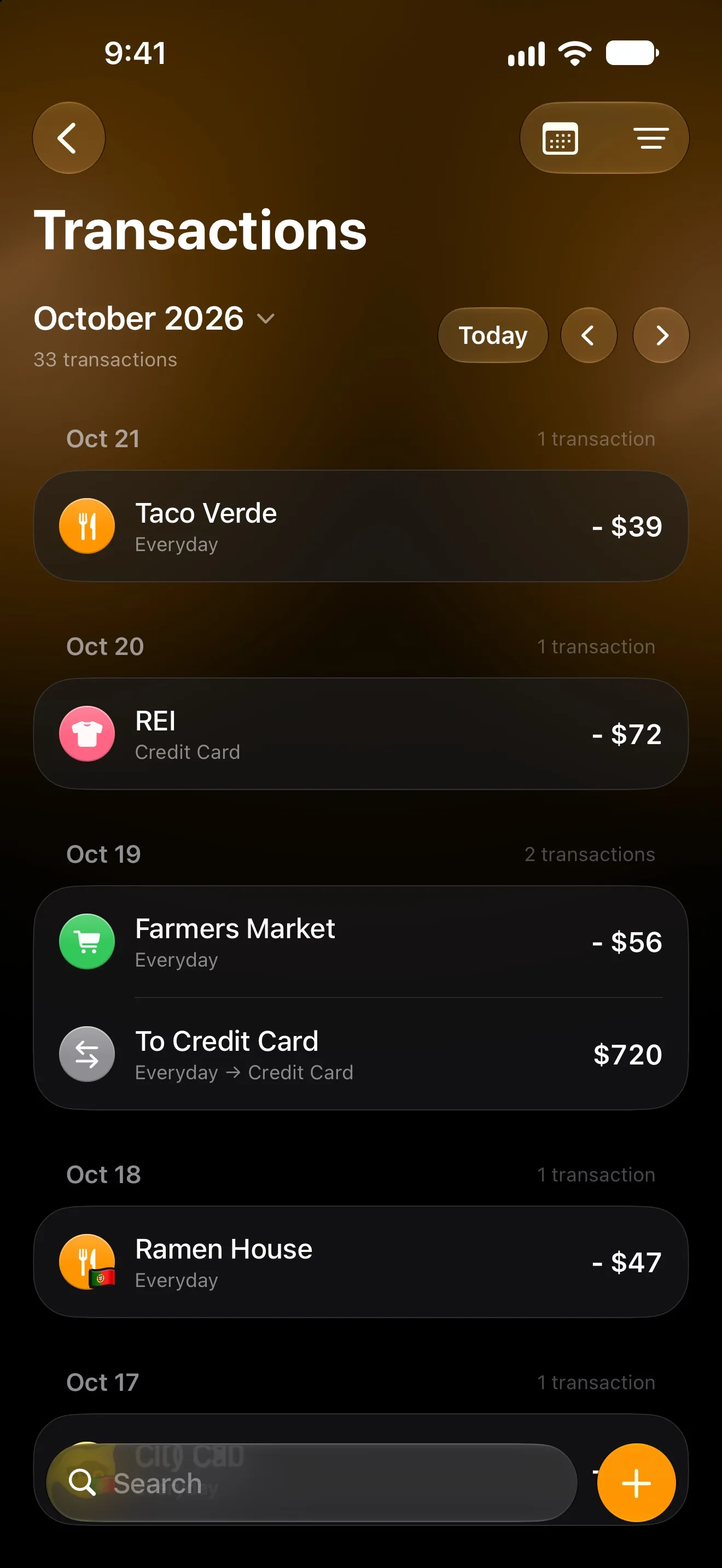
Most budgets don’t fail because people overspend. They fail on day nine, when typing in every coffee stops being worth it. The fix is to stop typing: let your iPhone log payments for you.
There are four ways to do that in 2026. They differ in what they catch, what they need from you, and where your money data ends up.
The four ways, side by side
| Method | What it catches | What it needs | Where data goes |
|---|---|---|---|
| Typing it in | Anything you remember | Discipline | Wherever the app stores it |
| Bank sync | Card and account activity | Your bank login, through a data aggregator | The aggregator and the app’s servers |
| Apple Pay automation | Tap-to-pay purchases | iOS 18, a Shortcuts automation | Stays on your iPhone |
| Bank notifications | Card, online, transfers and income | iOS 27, your bank’s push notifications | Stays on your iPhone |
Bank sync: complete, but it asks for your keys
Bank sync connects a budgeting app to your bank through a third-party aggregator. You sign in to your bank inside the app, and transactions arrive in batches, often with a delay.
It is the most complete option where it works. The trade-off is that you give a company access to your bank account, and your full transaction history lives on servers you don’t control. Coverage also varies a lot by country and by bank, so whether it works for you depends on where you bank.
Apple Pay automations: exact, private, tap-to-pay only
On iOS 18 and later, Shortcuts can run an automation the moment you tap a card in Wallet. The automation receives the exact amount and merchant, and passes them to a budgeting app — no bank involved.
In Lode, this is a ready-made automation you add once per card. Lode reads the amount, merchant and date, creates the expense and matches it to one of your categories.
The limit is in the name: it only sees Apple Pay, and only when you tap your iPhone to pay. Paying with the physical card, a bank transfer or cash doesn’t run it, so those need another way in. Full steps: Automatically log Apple Pay transactions.
Bank notifications on iOS 27: the new middle ground
iOS 27 added a Notification trigger to Shortcuts. An automation can now run the moment any app sends you a notification — including your bank’s “You spent €12.40 at Pingo Doce”.
Lode uses that trigger with its Log Bank Notification action:
- Your bank sends its usual push after a payment.
- The automation hands the notification’s title and text to Lode, silently.
- Lode reads the amount, currency, merchant and direction — money out becomes an expense, money in becomes income.
- You get Lode’s own notification with what was logged.
It catches everything your bank notifies you about: card payments in shops, online purchases, transfers and your salary. You never give anyone your bank password, and the text is read on your iPhone.
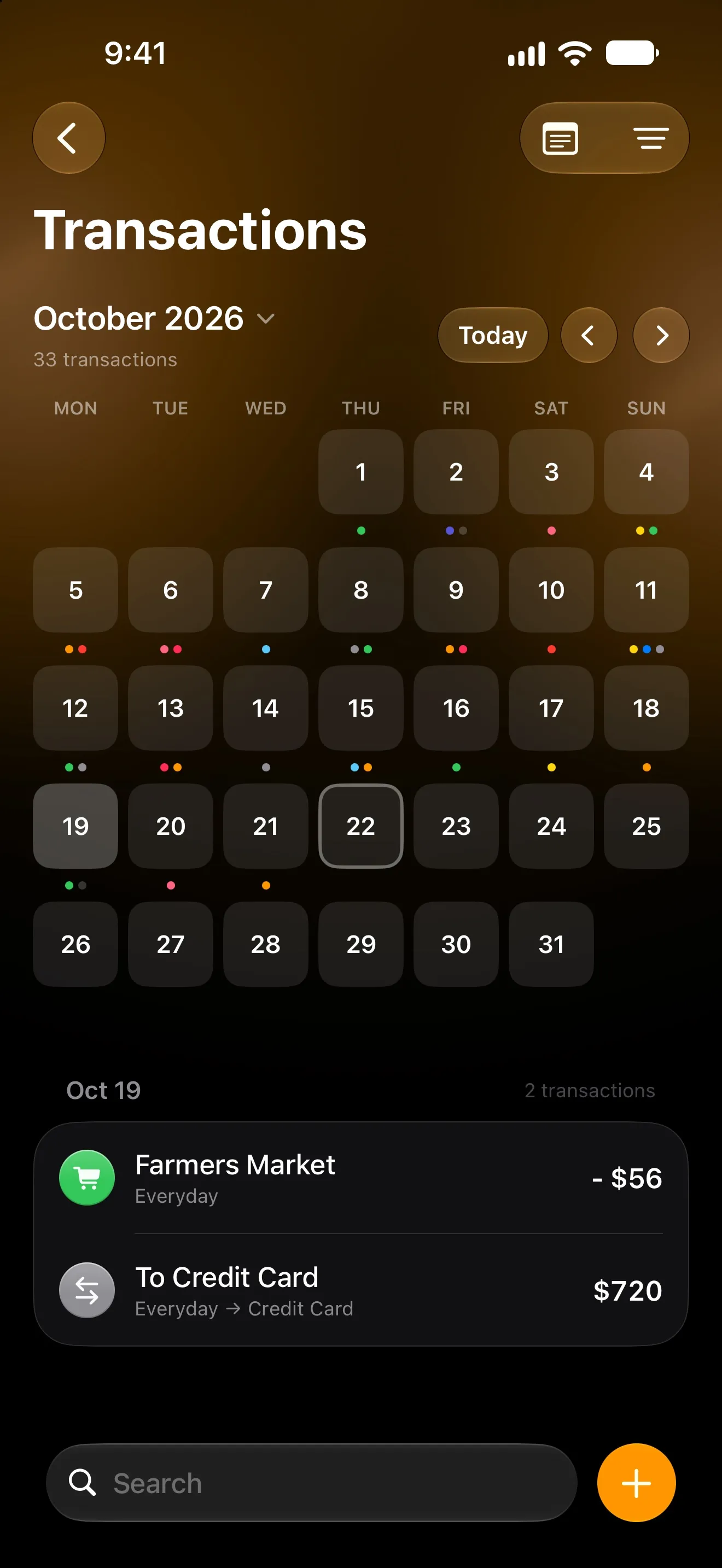
When Lode isn’t sure, it asks
Some notifications are ambiguous. A cash withdrawal isn’t spending yet — the coffee you buy with the cash is. A €49 charge might be your gym bill, which Lode already logs on schedule.
Instead of guessing, Lode asks: a notification with buttons (Income, Expense or Don’t record for cash; which bill a charge belongs to). It remembers the answer for that place, so it only asks once.
Setup takes one download per bank: Log payments from bank notifications.
Which one should you use?
- On iOS 27: use bank notifications for every bank that sends payment pushes. It covers the most and needs no login.
- On iOS 18 to 26: use the Apple Pay automation for the cards you tap, and log the rest by voice or chat.
- For cash: say it. “Coffee 4” by voice or in Lode’s chat becomes an expense with the right category.
One rule matters: use one automation per card. If the same card has both the Apple Pay and the bank-notification automation, every tap-to-pay purchase is logged twice.
Keep it accurate in the first week
Automatic logging is only as good as its first days. Three habits help:
- Check the first few entries per bank. Every bank words its pushes differently. If a merchant name looks off, fix it once.
- Correct categories when you see them. Lode remembers merchants, so the next payment at the same place lands in the right category.
- Answer the questions. The cash and bill prompts are what keep your totals honest.
FAQ
Is automatic logging free in Lode? Yes. Both the bank-notification and the Apple Pay automations are free.
Does it work on iPad? Bank notifications work on iPhone and iPad with iOS 27. Apple Pay logging needs an iPhone, because tapping to pay needs its NFC chip.
What if my bank doesn’t send notifications? Turn them on in your bank’s app first — most banks have a setting for every card payment. If yours doesn’t, the Apple Pay automation and voice entry cover the gap.
More from the Journal
A Budget App With No Bank Login: How to Track Money Privately
Why many people won't give a budgeting app their bank password, what you lose without bank sync, and how to keep a complete budget privately on iPhone.
How to Budget for a Trip Abroad (and Know What Each Day Cost)
Set one trip budget, log spending in the currency you pay in, and watch the cost per day as you go. A simple travel money method, and an iPhone app to run it.