

Trips & travel spending
Tracking & Planning
Trips & travel spending
Give a trip its dates and countries, and every expense on those days counts toward it automatically — with a budget, a per-day pace, a world map and a passport of stamps.
A trip in Lode is a name, dates and the countries you visit. Everything you spend during those days counts toward the trip automatically. There’s nothing to switch on before you leave, and a trip you add after you’re back still picks up the transactions that are already there.
Creating a trip
Touch and hold + at the bottom of the Dashboard and choose Trip. Before your first trip, the My trips section of the Dashboard also shows Plan a trip. You can also open the Trips screen (View all next to My trips, or Settings → Trips), tap + and choose Plan a trip. On iPad, open Dashboard in the sidebar.
Name: the only required field.Budget: optional, in any currency. On the trip it becomes what you have left per day.Add country or city: search for the places on your route. Countries work offline; cities need a connection. Each country shows its currency. With more than one country, set theArrivesdate for each one. A country runs until the next one’s arrival, and spending is split between them by date.StartsandEnds: dates with times. By default a trip covers whole days, from 00:00 on the first day to 23:59 on the last. If you set a departure or return time, spending before you leave and after you’re back stays out of the trip.I know the return date: turn it off for an open-ended trip. It keeps collecting until you end it.
A country is optional. A trip that stays in your own country still keeps its dates, budget and total.
One day belongs to one trip, so trips can’t overlap. If the dates clash, the editor names the other trip, and if that trip is still running it offers End it today.
What counts toward a trip
Every expense dated inside the trip’s days counts toward it. You can adjust this in a few ways:
Regular bills don't countis on by default. Rent and subscriptions charged during the trip stay out, but you can still add any of them by hand.- While you add an expense during a trip, a pill above the amount shows the trip’s name. Tap it and choose
Don't count it in the tripto keep that one entry out, orCount it in the tripto put it back. - The
Triprow in the transaction editor puts an entry into a trip whatever its date, such as a flight you booked a month early. It appears while you have a trip that’s running, coming up or ended within the last month. ChooseNot in a tripto take the entry out. - Touch and hold a transaction for
Add to trip,Remove from trip,Put back in the triporOpen trip.
Money added to a trip from outside its dates counts in its total. On a trip with several countries, it’s listed separately as Outside the dates.
Starting and ending a trip
Open a trip’s menu: tap ••• on its page, or touch and hold its card on the Dashboard.
Start nowsets off a planned trip immediately. Anything you recorded earlier that day stays out of the trip. If another trip already holds today, Lode explains the clash and, where it can, offers to end that trip and start this one.End tripcloses a running trip. Everything already recorded stays in it, and nothing you enter afterwards joins it. You can also end a trip from the trip pill in the transaction editor when the entry is dated today.- When a trip ends, a
Welcome homesheet shows its total and how many days it lasted. From there you can share the trip card or tapOpen passportto see the stamps it just added. Deleteremoves the trip only. Its transactions stay.
Budget, pace and currencies
Trip totals are in your base currency as it was when you created the trip. Each expense is converted at the rate on its own date, so a dinner keeps what it cost even after the exchange rate moves. A budget set in another currency is converted at today’s rate.
Use the country's currencyis on by default. New transactions during the trip start in the currency of the country you’re in.- Conversions on transactions dated during a trip don’t count toward your free monthly conversions.
The trip page opens with a ticket-style card. It shows spent against budget, the currencies you actually paid in (Paid in), and the Departure, Duration and current day (or Starts / Ended). Below the card are the Trip summary, a Convert card for the local currency while the trip is ahead or under way, Countries once the trip covers more than one, a By day chart with your budget line, Categories, Recent Transactions and your note.
On the Dashboard, My trips shows a trip that’s running or starts within a week. You’ll see which day it is, what’s spent, and what’s left per day, or Over by if you’ve gone past the budget. The rest of the time, the card shows your map’s score.
Map, passport and continents
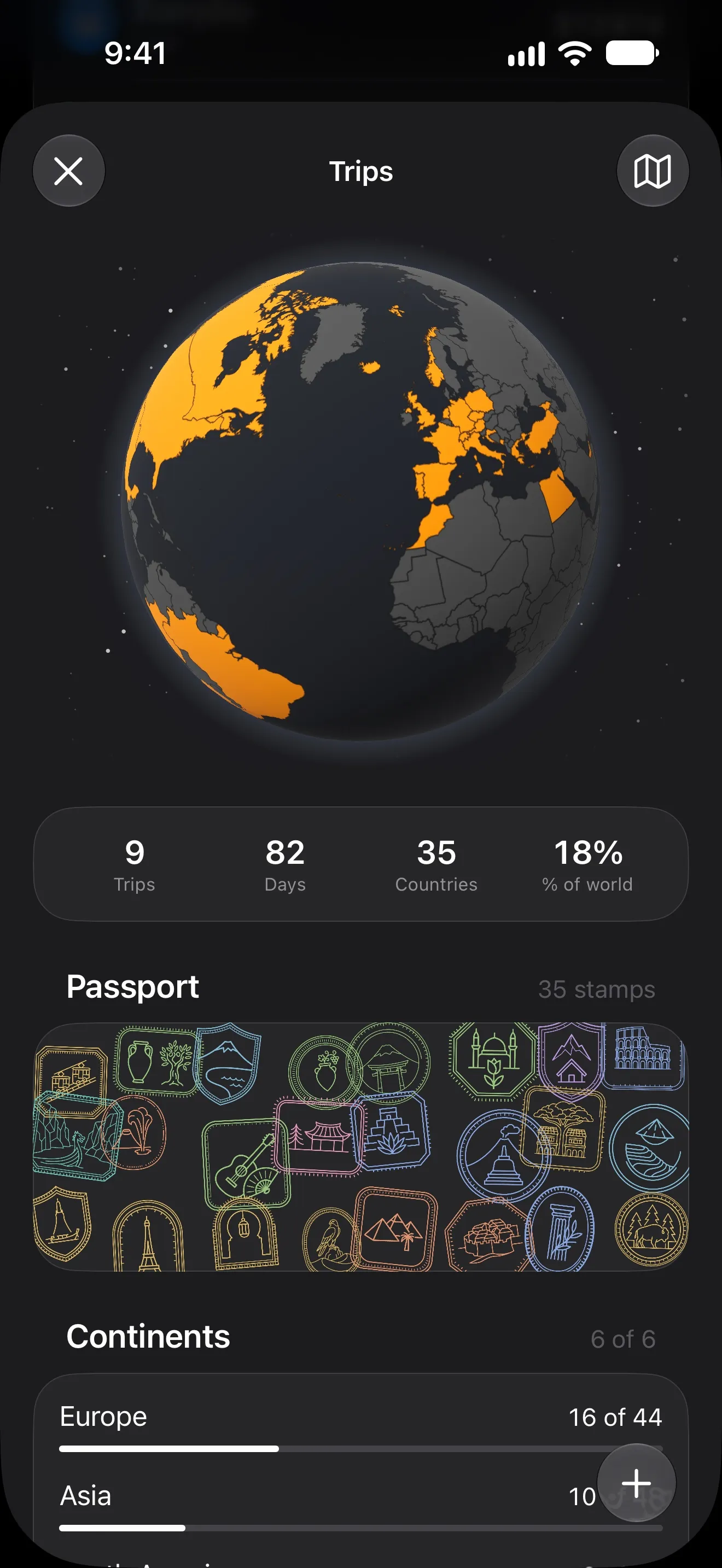
The Trips screen opens on a globe with your visited countries filled in. Tap the button at the top right to switch to a flat map. Under the map, the score counts your trips, days on the road, countries (out of 195) and the share of the world you’ve seen.
Passport: one stamp per country. Tap the strip to open the passport, where you can search and sort byDate,Name (A → Z)orDays. Tap a stamp to see how many trips and days you’ve spent there and since what year. The page also lists the cities you visited and roughly what a day there cost across all your trips. TapShareto send the stamp.Continents: how many countries you’ve visited on each continent.Your trips: cards for your current, upcoming and recent trips.View alllists every trip underNow,Upcomingand by year. You can search by name, country, city or year.Mark a country: tap+to mark countries you’ve been to without a trip. They appear underAlso been to, and you can swipe to remove one.
A free Passport widget (small, medium and large) puts your stamps and score on the Home Screen. See Widgets for how to add one.
Trips in Statistics
With Premium, the Trips tile in Statistics shows what the period’s trips cost. It compares a day on the road with a day at home and shows the trips’ share of your spending and the cost per day by country.
To compare a month with a holiday in it against an ordinary one, turn on Without trips in the filter. It leaves out trip spending but keeps income. The filter in Statistics is a Premium feature; the one in Transactions is free.
Sharing a trip card
Once a trip has begun, choose Share from its menu, then With the amount or Without the amount. The card shows the flags, the trip’s name, its dates and length, and the total if you chose to include it. If Hide amounts is on, only the card without the amount is offered.
Lock Screen and reminders
With Show on the Lock Screen on (the default), a running trip appears as a Live Activity on the Lock Screen and in the Dynamic Island. It shows where you are, spent against budget, which day it is and what’s left per day. Live Activities need to be allowed for Lode in iOS Settings.
Settings → Notifications → Trip Reminders sends a reminder the night before a trip starts and on its last day. It also asks whether to end an open-ended trip once it has been running for three weeks.
Trips and shared accounts
Trips are personal. Sharing an account with someone doesn’t share your trips with them. If you share an account, the trip editor shows Travelling together, which is off by default. With it on, what the other people spend on shared accounts during the trip counts too. With it off, only your own spending counts. The trip page’s People section shows each person’s spending and marks what’s Not counted. See Shared accounts.
Trips and Lode AI
Lode AI (Premium) knows all your trips, including their countries, dates, spending, budgets and notes. You can ask what a trip cost or which countries you’ve been to. Everyone gets the Trip summary sentence on the trip page; with Premium, AI rewrites it.
Free and Premium
The free plan includes 1 trip per calendar year (counted by the year the trip starts) and 5 places marked by hand. Countries you reached on a trip don’t count toward the 5. The map, passport, trip totals, spending by country and budgets are all free. Premium removes both limits and adds the Trips tile in Statistics.
Questions? Reach out at lodeapp@proton.me.
From the Journal
- How to Budget for a Trip Abroad (and Know What Each Day Cost)
Set one trip budget, log spending in the currency you pay in, and watch the cost per day as you go. A simple travel money method, and an iPhone app to run it.
- How to Track Spending in Multiple Currencies Without Doing Math in Your Head
Paid in one currency, spending in another? Four rules for multi-currency budgeting — accounts, base currency, exchange rates — and how to set them up on iPhone.