

Accounts & balances
Getting Started
Accounts & balances
Add accounts for cards, cash and savings, set a starting balance, correct a balance with Adjust Balance, move money between accounts, and archive or delete accounts.
An account is where money lives: a bank card, a cash wallet, a savings account. Every transaction belongs to one account, and each account keeps its own balance in its own currency.
Where to find your accounts
On iPhone, the Dashboard lists your accounts under Accounts. Tap View all for the full list, or go to Settings → Accounts. On iPad, open Settings in the sidebar, then Accounts.
Tap an account to open its page. Press and hold it, or tap … on its page, for the account menu: Statistics, Edit, Adjust Balance, Archive, Share Account and Delete Account.
Total Balance at the top of the Dashboard adds up your active accounts.
Adding an account
In the Accounts list, tap +. Pick a template to start from — Cash, Bank, Credit Card, Savings or Investment — or fill in your own:
NameandColor. Tap the pencil on the icon to choose a different icon.Currency: the currency this account is kept in. Each account has exactly one.Note: optional.Starting Balance: the money already in the account today.
The free plan includes one active account. Premium removes the limit. Archived accounts don’t count toward it.
Starting balance
Money that was already in an account before you started using Lode isn’t income, and Lode doesn’t treat it as income. The starting balance sets the account’s balance and nothing else. It doesn’t count as income or spending in Statistics or budgets.
For a credit card or an overdraft, enter the starting balance with a minus, for example -450.
Adjust Balance
If an account in Lode no longer matches your bank or your wallet, correct it instead of inventing an income or an expense. Choose Adjust Balance from the account menu, or tap the Balance row in Edit Account.
Type the figure your bank shows in New Balance. Lode shows the Current Balance and the Difference before you save.
- No starting balance yet: the first correction becomes the account’s starting balance. It’s dated just before the account’s earliest transaction.
- Starting balance already set: each later correction is saved as a balance adjustment, dated now.
Neither one is counted as income or spending. For a card debt or an overdraft, use a minus.
Transfers between accounts
To move money between your own accounts, add a transaction and choose Transfer. Pick From and To. Each one shows its account’s current balance. Transfer appears once you have two or more active accounts.
If the two accounts use different currencies, Lode fetches the exchange rate, and you can enter your own instead. Transfers have a note but no category or tags. They don’t count as income or expenses in Statistics.
The account page
An account’s page shows This Month: Start of Period, Money In, Money Out and Now. Transfers count in Money In and Money Out, because the money crossed this account’s boundary. Edit next to the dates takes you to Start of Month, where you can move the start of your financial month to your payday.
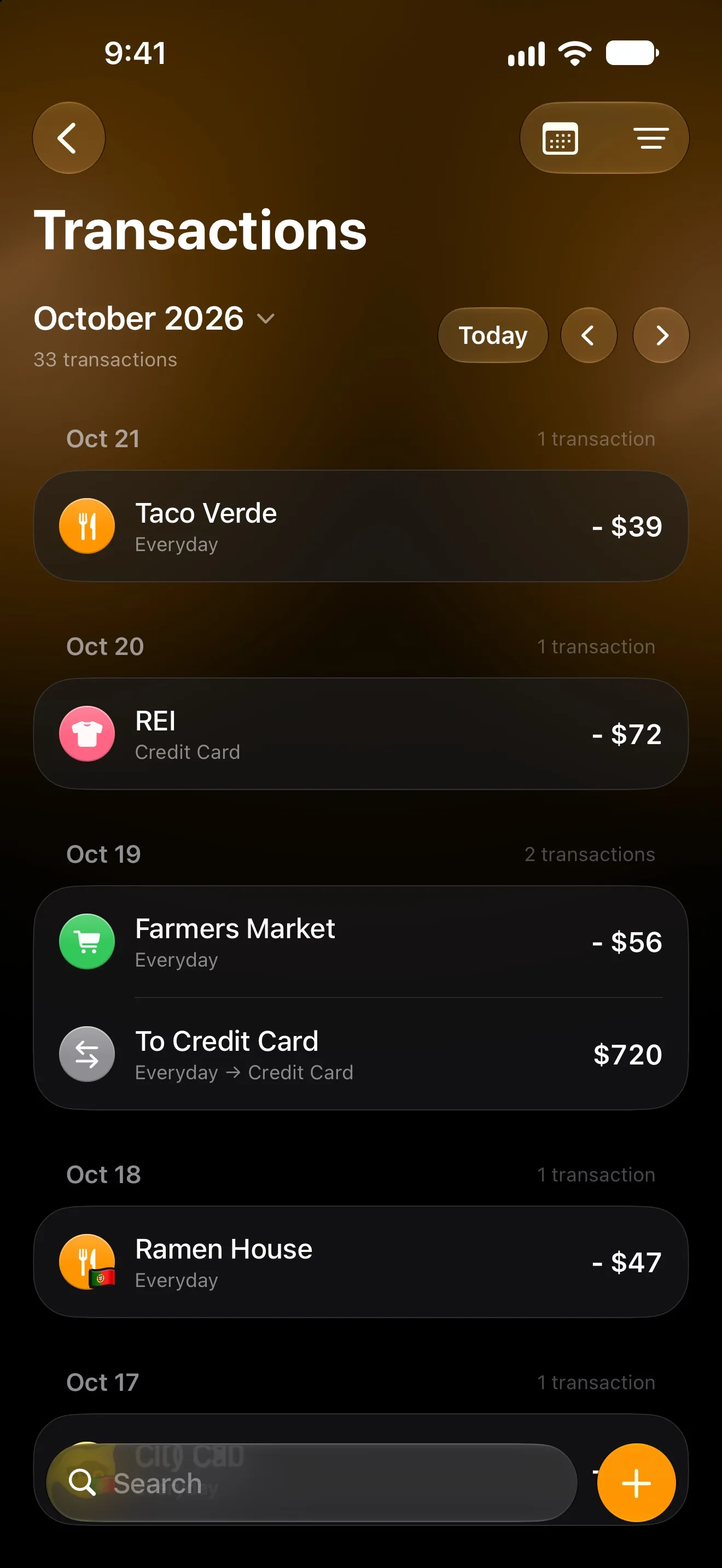
Below that are a Statistics shortcut and the account’s Recent Transactions, with View all for the full history. When you have more than one account, Statistics for a single account is a Premium feature. See Statistics.
Changing an account’s currency
Open Edit Account and pick a new Currency. Lode converts all of that account’s transactions into the new currency at the current exchange rate. If it can’t get a rate, the account keeps its old currency and Lode tells you so.
A shared account’s currency can’t be changed while it’s shared.
Sorting and reordering
In the Accounts list, tap the sort button and choose Manual, Name (A → Z), Name (Z → A) or Balance. In Manual, tap Edit and drag accounts into the order you want.
Archiving an account
Archive an account you no longer use but want to keep the history of. Swipe right on it in the Accounts list and tap Archive, or use the account menu.
An archived account:
- is left out of your total balance and out of the account pickers;
- keeps all its transactions and history;
- has its bills paused until you restore it.
To see archived accounts, switch to Archived at the top of the Accounts list. Swipe right on one and tap Restore to bring it back. You can’t archive your only active account, and shared accounts can’t be archived.
Deleting an account
Swipe left on an account and tap Delete, or choose Delete Account from the account menu or in Edit Account.
If a personal account has transactions or bills and you have another active personal account, Lode offers a choice:
Move Everythingmoves the account’s transactions, bills, goals and debts to an account you pick, then deletes the empty account. If the two accounts use different currencies, amounts are converted at today’s rate.Delete Everythingdeletes the account together with everything in it.
Deleting can’t be undone. On a shared account only the owner can delete it, and it’s deleted for everyone in it.
Shared accounts
To manage an account together with someone, choose Share Account from the account menu. See Shared Accounts.
Questions? Reach out at lodeapp@proton.me.