

Bills & recurring expenses
Tracking & Planning
Bills & recurring expenses
Set up recurring expenses and income — subscriptions, rent, salary — and Lode creates transactions automatically on schedule.
Bills let you track recurring expenses and income — subscriptions, rent, salary — and have Lode create transactions automatically on schedule.
Creating a bill
Touch and hold + at the bottom of the Dashboard and choose Bill. You can also open the Bills list — tap the Upcoming row at the top of the Dashboard’s Recent Transactions, or go to Settings → Bills — and tap +. To turn a transaction you already recorded into a bill, choose Make it a Bill from its … menu.
Set the amount, choose a category and account, and pick a frequency: Daily, Weekly, Every 2 Weeks, Monthly, or Yearly. You can also set a custom interval for less common schedules, such as every 3 months. Add a start date and optionally an end date.
Templates make setup faster — Rent, Internet, Phone, Gym, Streaming, and Insurance for expenses; Salary, Freelance, Rental, and Dividends for income.
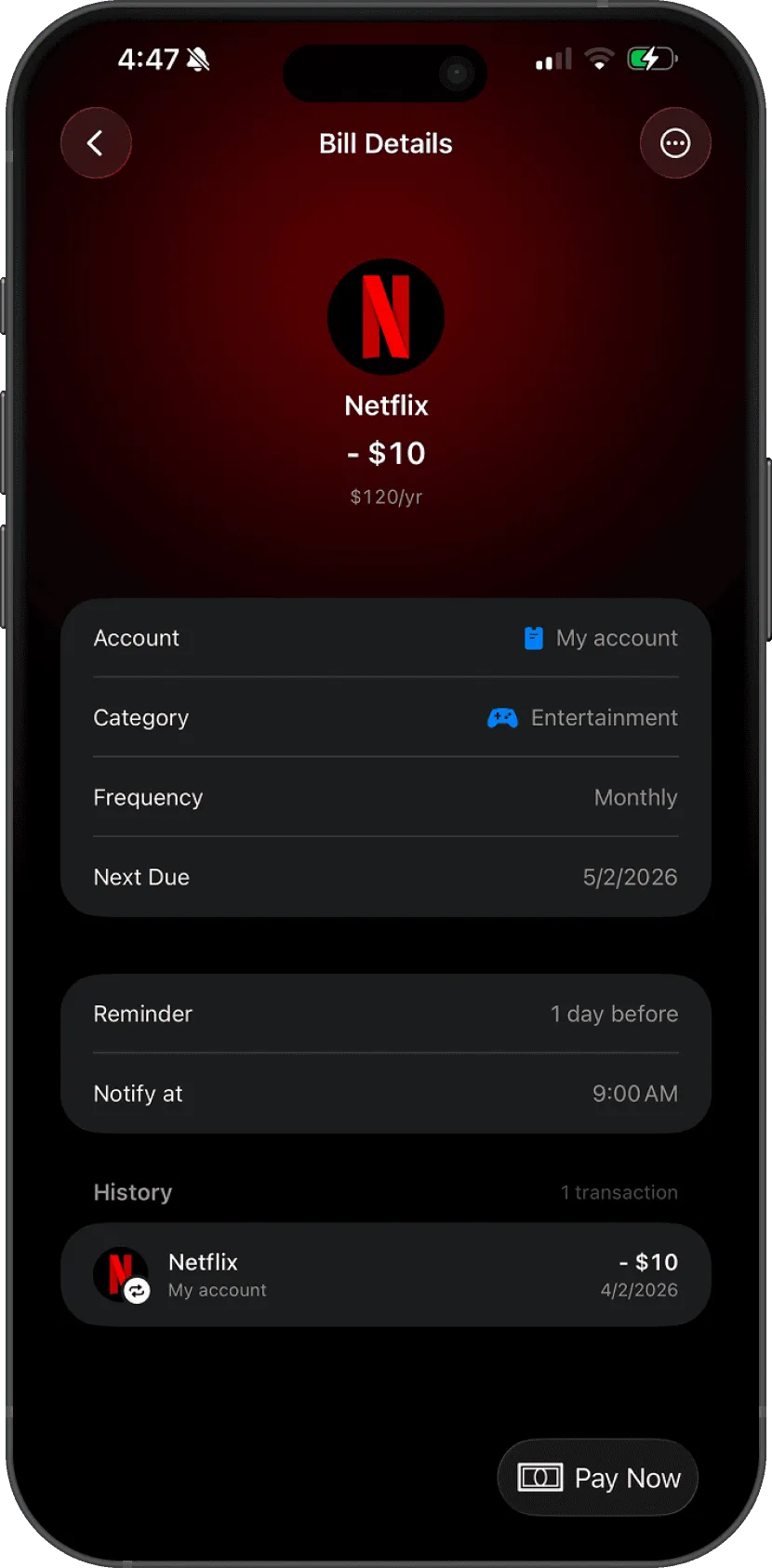
Automatic transactions
Every time you open Lode, it checks for overdue bills and creates transactions automatically. If the app hasn’t been opened for a while, it catches up and creates one transaction per missed occurrence.
Manual pay and skip
To record a payment before the automatic run, open the bill and tap Pay Now — a transaction is created and the next due date advances. To skip one occurrence without creating a transaction, choose Skip Period from the bill’s … menu. Both are also in the menu when you touch and hold a bill in the list.
Free trials
Enable Free trial and set the end date to track a subscription trial. No transactions are created while the trial is active. You’ll get a reminder 2 days before the trial ends so you can decide whether to cancel.
Reminders
Each bill has one configurable reminder. By default it fires 1 day before the due date at 9:00 AM. To change it, open the bill, tap … → Edit, and set the reminder anywhere from Same day to 30 days before, at any time — or turn off Enable reminder. The reminder notification has Pay Now and Skip Period buttons, so you can act without opening the app.
Pause and archive
Swipe left on a bill to Pause it, or touch and hold it for Pause and Archive. Paused bills are skipped until you Resume them. Archived bills stop creating transactions and move out of the main list; Unarchive brings them back. Use the Active, Paused and Archived filter at the top of the Bills list to find them. The list also has a calendar view.
Questions? Reach out at lodeapp@proton.me.
From the Journal
- Payday Budgeting: Start Your Month on the Day You Get Paid
If your salary lands on the 25th, a calendar-month budget is always half wrong. How payday budgeting works, and how to set it up on iPhone with one setting.
- How to Find Every Subscription You Pay For (and Cancel the Ones You Forgot)
Subscriptions hide in five places, and your iPhone only shows one of them. Here's how to find them all in 20 minutes, cancel safely, and keep the list current.