

Adding transactions
Getting Started
Adding transactions
Add an expense, income or transfer with the + button, your voice, a receipt photo or an automation — then edit, duplicate or delete it.
Every expense, income and transfer in Lode is a transaction. You can type one in, say it, scan a receipt, or let an automation log it for you.
Add a transaction by hand
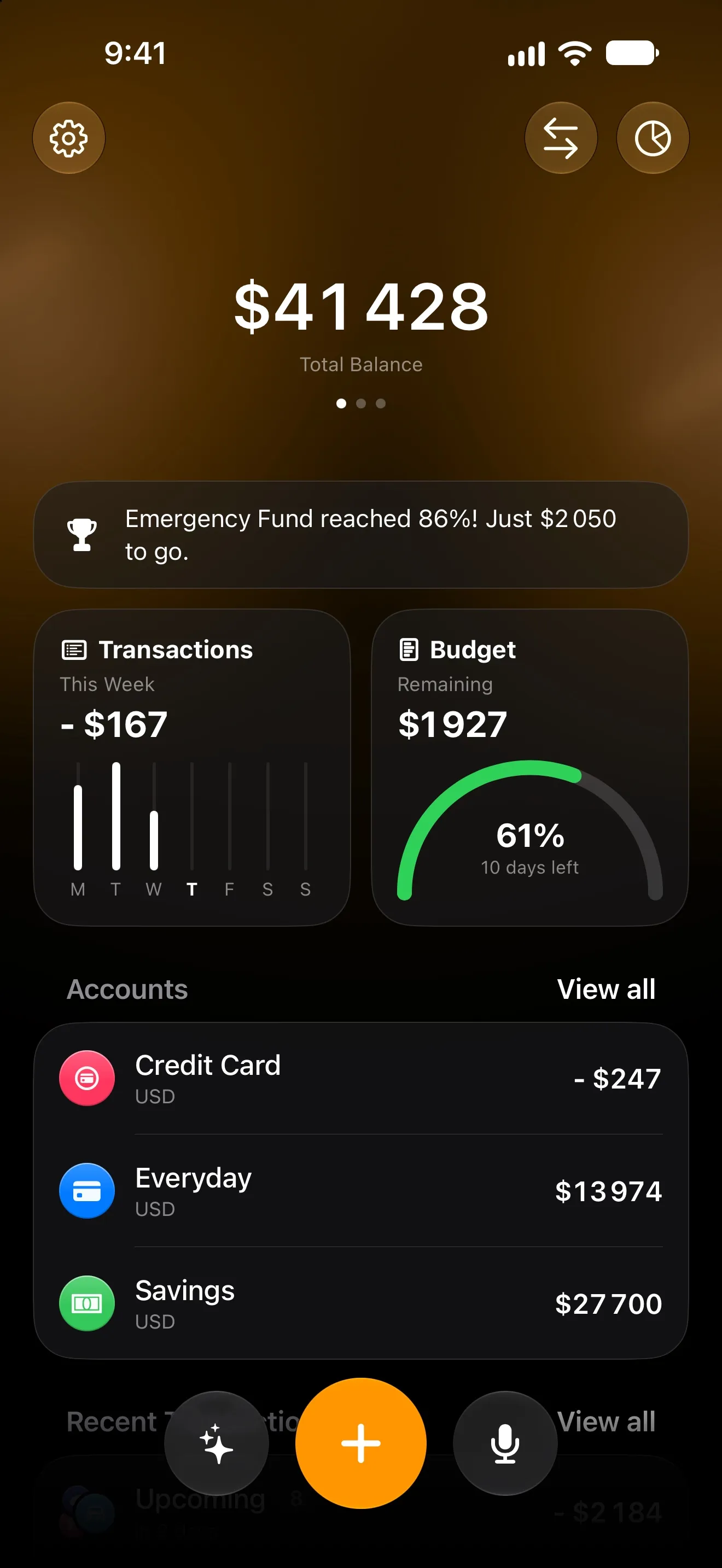
On iPhone, the Dashboard has three buttons at the bottom: Lode AI on the left, + in the middle and the microphone on the right. Tap + to open New Transaction.
On iPad, choose Transactions in the sidebar and tap +. On iPhone you get the same screen from the Transactions tile on the Dashboard, and it has its own + too.
- Choose
Income,ExpenseorTransferat the top. A new transaction starts as an expense. - Type the amount. The bar above the keyboard has
÷×−+, so you can add up a receipt right in the field. - Pick the
Accountand theCategory. Categories you’ve used recently appear as chips under the card, so you can choose one in a single tap. - Check the
Date, and add aNoteandTagsif you want them. - Tap ✓ to save.
To enter an amount in another currency, tap the currency code next to the amount. Lode converts it into the account’s currency. See Multi-currency & exchange rates for how rates and free conversions work.
Transfer only appears once you have two or more active accounts. More on transfers in Accounts & balances.
Shortcut: press and hold + to start something else instead. Slide onto Transaction, Bill, Goal, Debt, Trip or Project and let go.
Date and time of day
The Date row shows the day and the time, side by side. Tap the day for a calendar, or the time for a wheel.
Some entries have no known time, such as an imported line with only a date or a charge created by a bill. They show —:— instead of a made-up midnight. Tap —:— to give the entry a time. It starts at the current clock time on that day.
Voice input
Tap the microphone on the Dashboard and say what you spent or earned. You can name several things at once. Tap the middle button to stop, or the × on the left to cancel.
Lode turns what you said into a list on the Review transactions screen. Tap any item to adjust it, then tap Save transactions. Nothing is saved before that. Voice can also set up a recurring payment as a bill.
Voice input is a Premium feature. Without Premium you get 3 voice sessions each month to try it. A session only counts when it produces something to review, and one session can hold several transactions.
Lode AI and receipt scanning
Tap Lode AI (the sparkles button) to add transactions by typing, the way you’d send a message. To go straight to the camera, press and hold Lode AI and choose Scan Receipt. Both require Premium. See AI chat & receipt scanning.
Siri and automatic logging
- Siri and Shortcuts: say “Add a transaction in Lode”. See Siri & Shortcuts.
- Bank notifications (iOS 27): Lode can log every payment your bank notifies you about. See Bank notifications.
- Apple Pay: Lode can log each tap-to-pay purchase. See Apple Pay automation.
When a payment needs your decision
Lode’s payment automations don’t guess when the right answer depends on how you keep your books. They ask you instead.
- Cash at a terminal or an ATM, reported by your bank’s notification, isn’t recorded until you answer. You get a notification, and a card on the Dashboard tells you how many payments need your decision. Tap
Review Paymentsto openNeeds a Decision, then chooseRecord as Income,Record as ExpenseorDon't Record. Lode remembers your answer for that place. To have it ask again, go toSettings → Automation → Remembered Merchants. - A charge that may belong to one of your bills is recorded as its own transaction, and Lode asks about it.
Link to Billkeeps a single entry: the bill’s, with the amount the bank actually charged.Not This Billkeeps the charge as its own transaction.
The transaction page
Tap any transaction to open Transaction Details, or Transfer Details for a transfer. Along with the account, category, date, note and tags, the page can show:
Balance: what the account held right after this transaction, like the running balance on a bank statement.Rate: the exchange rate the transaction was booked at, when you paid in a currency other than the account’s.Local time: the time where the payment happened, when that was in a different time zone.Added by: who added the transaction, on a shared account.From bill: a link to the bill that created this transaction.
Edit, duplicate or delete
Press and hold a transaction in any list, or tap … on its page. The menu offers:
Edit: opens the full editor.Duplicate: makes a copy with the same amount, category, account, note, tags and date. This isn’t available for transfers.Make it a Bill: starts a new recurring bill filled in from this transaction.Delete: removes the transaction after you confirm. This can’t be undone.
You can also delete from the editor with Delete Transaction.
On a shared account, the editor has a Hide from Others switch for entries you’d rather keep to yourself. See Shared Accounts.
Recurring payments
A transaction is a single entry and never repeats. For rent, subscriptions or a salary, create a bill. Lode then adds the transactions on schedule.
Find a transaction
On the Transactions screen, switch between List and Calendar view, or narrow the list by account, category or tag with the filter button. Search finds transactions by description, category, account, tag or amount. When you add a transaction in Calendar view, it’s dated on the day you have selected.
Questions? Reach out at lodeapp@proton.me.