

Goals & savings targets
Tracking & Planning
Goals & savings targets
Track savings goals with progress bars and optional deadlines. Contributions can be recorded manually or linked to your account balance.
Goals help you save toward a target — a vacation, emergency fund, new gadget, or anything else.
Creating a goal
Touch and hold + at the bottom of the Dashboard and choose Goal. You can also open the full goals list — View all next to Goals on the Dashboard, or Settings → Goals — and tap +.
Enter a name and target amount. Add a deadline if you have one. Choose an icon and color to personalize the goal. Templates like Emergency Fund, Vacation, New Car, House, Education, Wedding, Gadget, and Retirement give you a quick start.
The free plan includes up to 3 active goals; completed and archived goals don’t count. Premium removes the limit.
Adding contributions
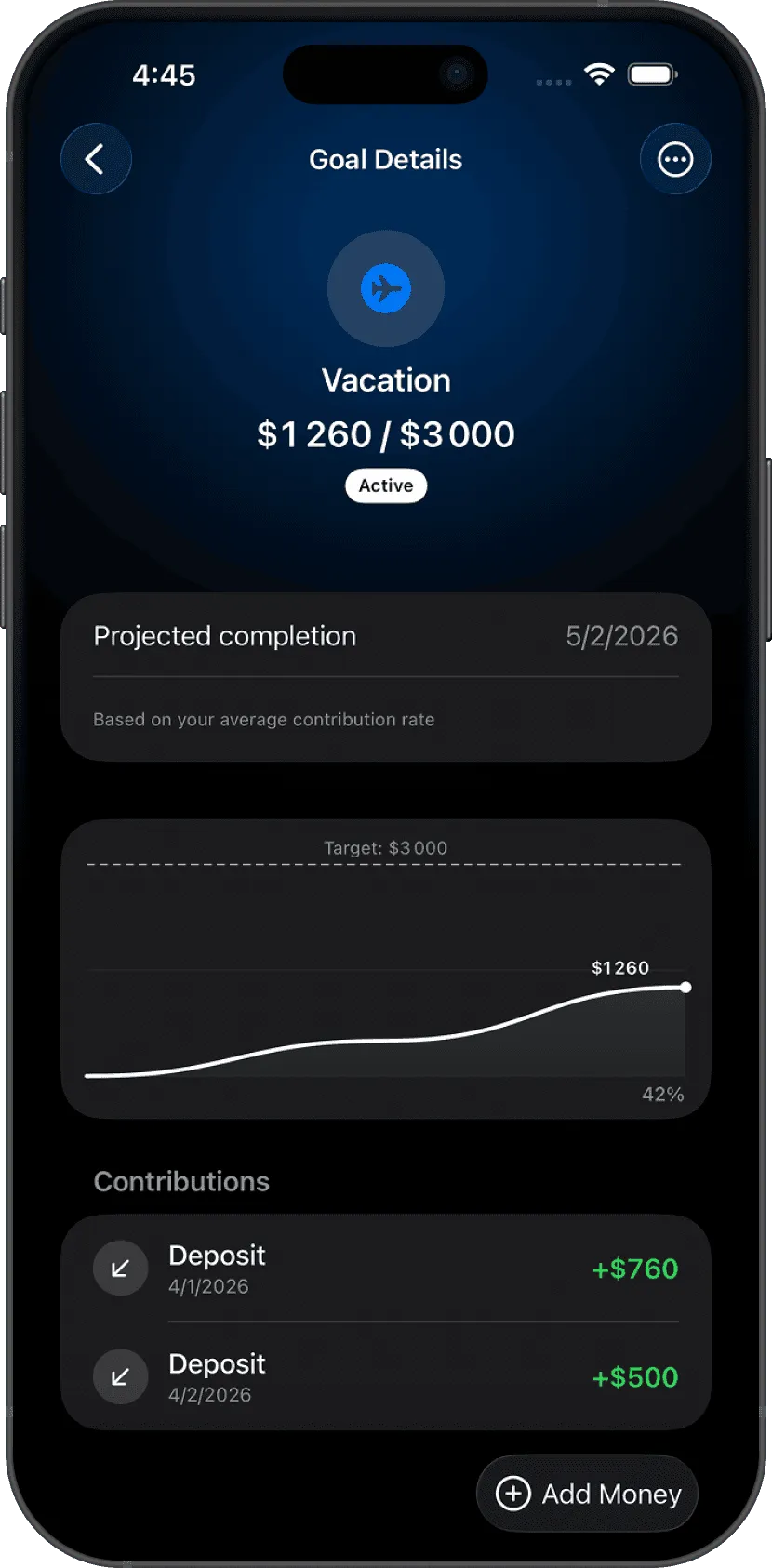
Open a goal and tap Add Money to record a contribution. Enter the amount, choose a date, and add an optional note. Your progress bar updates immediately. To take money out, choose Withdraw from the goal’s … menu.
When your total reaches the target amount, the goal is automatically marked as completed, and Lode shows what you saved with a Withdraw savings shortcut. You can also finish a goal yourself with Mark as Complete.
Move money from an account
Enable Move money from account in the goal editor and select a funding account to have contributions affect your real account balance. Each contribution creates a transaction that reduces the account balance; withdrawals add money back. Money moved into a goal isn’t counted as spending in Statistics or budgets. You can still switch this on or off for a single contribution.
Leave this off to track progress without touching any account.
Deadline & reminders
Turn on Target Date and set the Reach it by date. Once it’s on, you can configure a reminder to notify you on the deadline day or a set number of days before it.
Dashboard card
New goals are pinned to the Dashboard (Pin to Dashboard in the goal editor). Touch and hold a goal in the Goals list to Pin or Unpin it. The Dashboard shows up to five pinned goals, in the order you choose with the Goals list’s sort menu — pick Manual to arrange them yourself. Completed goals leave the Dashboard.
Questions? Reach out at lodeapp@proton.me.